Royal Mail Job: Login Automatically
Login to Royal e-mail automatically with a Password manager.
To login to Royal email with a single click, please do the following:
- Download password manager;
- Turn on Handy Password toolbar in Internet Explorer/Firefox;
- Go to the www.royalmail.com;
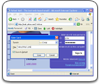
- Type in your Royal E-mail and password;
- Click the "Save" button on the Handy Password toolbar;
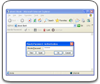
- Click "Cancel" or "Esc" once to cancel a card, saving the contents of the "Search" field;
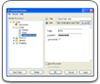
- Check the "Show on Toolbar" checkbox in the opened "Save card" dialog;
- Press "Enter".
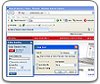
From now, to login to Royal e-mail automatically, just click on the "Royal Mail information and services portal" button on the Handy Password toolbar.
Handy Password is also called a bookmark manager, because "Royal Mail" button appears on IE or Firefox browser toolbar like bookmark and contains not only filled form fields, but also a site url, so you can at once enter a site and login to it.
Read about automatic login, autosave passwords and other features of Handy Password.

See also:
Verizon mail login
Bellsouth mail
Mail login
Back to Screenshots List
 |  |  |